Follow these instructions if you are in the following situation:
- You have a Zigbee2MQTT network running,
- you no longer have the original adapter,
- and you want to migrate to Home Assistant Connect ZBT-1.
Please note that not all settings can be migrated:
- These steps help migrate the network, meaning you won't have to pair all your devices again with Home Assistant Connect ZBT-1.
- However, some higher-level settings cannot be migrated.
- Elements such as device names will be lost.
- There is currently no migration path to transfer all settings.
To migrate a Zigbee network from a Zigbee2MQTT backup
Step 1
Creating a Zigbee2MQTT backup
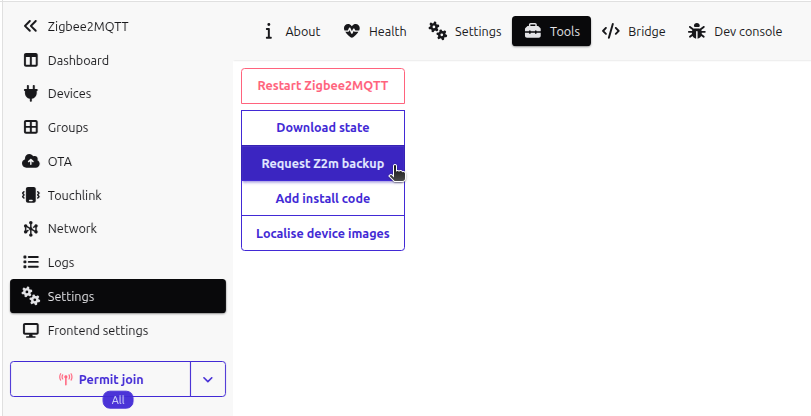
- Under Settings > Add-ons, open the Zigbee2MQTT add-on and select Open Web UI.
- In the Zigbee2MQTT UI, go to Settings > Tools and select Request Z2M backup.
- Select Download Zigbee2MQTT backup.
-
Result:A zip file should now be downloaded into your Downloads folder.
Step 2
Unzipping the backup folder

- In your Downloads folder, unzip the z2m-backup file.
- Info: It should contain a coordinator_backup.json file.
Step 3
Stopping the Zigbee2MQTT add-on
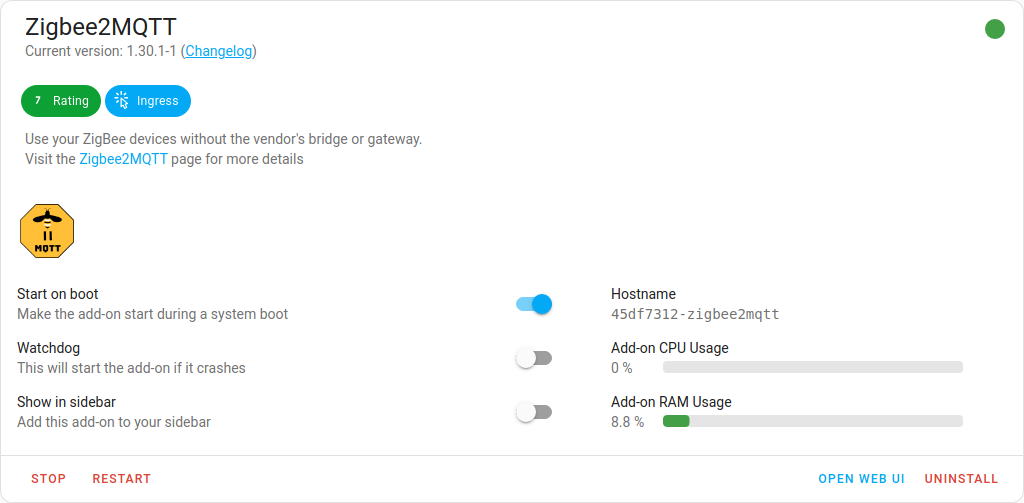
- Under Settings > Add-ons, in the Zigbee2MQTT add-on, select Stop.
- Zigbee2MQTT uses the MQTT discovery feature to make the Zigbee devices available in Home Assistant. After removing the Zigbee2MQTT add-on, the devices are still present in Home Assistant since the MQTT broker is still holding on to the MQTT discovery messages.
- It is recommended to remove these stale devices from the MQTT broker (see next steps).
Step 4
Removing Zigbee2MQTT devices (option 1)
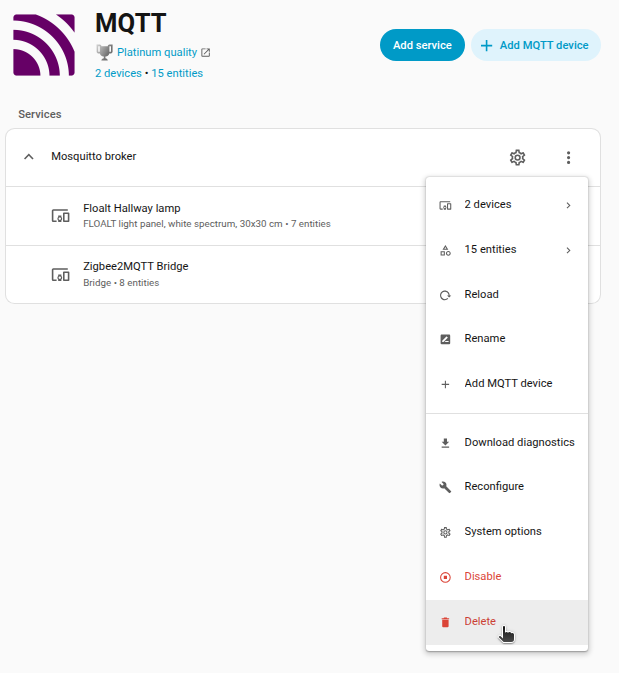
If you don't use MQTT outside of Zigbee2MQTT, you can delete the MQTT integration.
- Under Settings > Devices & services, select the MQTT integration.
- Select the three dots and in the dropdown menu, select Delete.
Step 5
Removing Zigbee2MQTT devices (option 2)
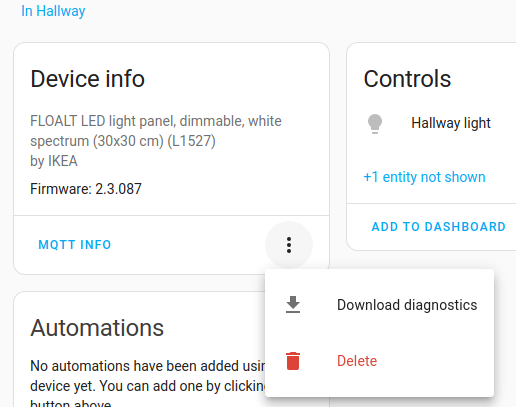
If you don't want to delete the complete MQTT integration, you can remove individual devices from the MQTT integration.
- In the integration card, select Devices, under Device info, select Delete.
- Repeat this for every Zigbee device.
Step 6
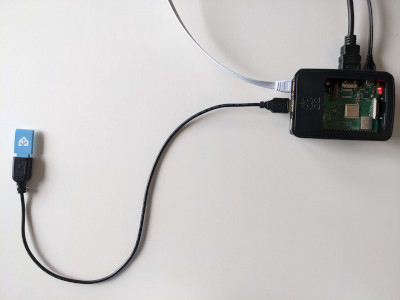
Plugging the extension cable into Home Assistant Connect ZBT-1
Notice
USB 3.0 ports and USB 3.0 drives can cause interference with 2.4 GHz protocols, including the ones provided by Home Assistant Connect ZBT-1.
- It is important to use the USB extension cable and to position the Home Assistant Connect ZBT-1 away from possible interference sources.
- This video shows the effect of interference.
- Plug the Home Assistant Connect ZBT-1 into the USB extension cable.
- Plug the extension cable into your Home Assistant instance.
- If you are using the standalone Home Assistant Container installation method, make sure Connect ZBT-1 is mapped to the container.
Step 7
Adding the adapter's integration
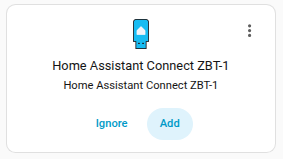
- Go to Settings > Devices & services.
- The Home Assistant Connect ZBT-1 integration should now have been discovered.
- Select Add.
Step 8
Picking your protocol
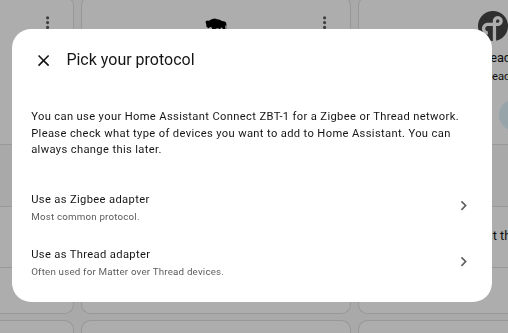
- In the dialog, select Use as Zigbee adapter.
Step 9
Select installation type
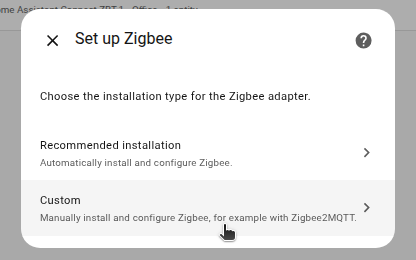
- In the dialog, select Custom.
- When asked to select the Zigbee method, select Zigbee Home Automation.
- Then, select Submit.
Step 10
Uploading a manual backup
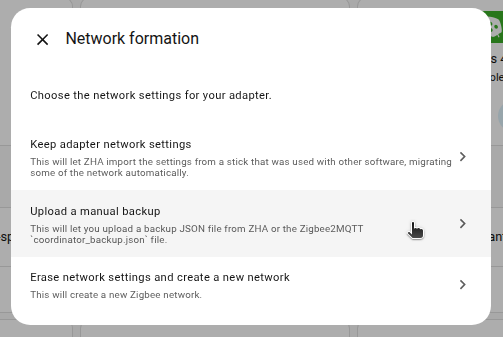
- In the Network Formation dialog, select Upload a manual backup.
Step 11
Select the backup file
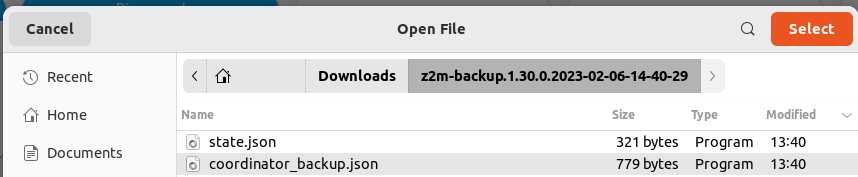
- In your Downloads folder, select the coordinator_backup.json file.
Step 12
Submit the backup json file
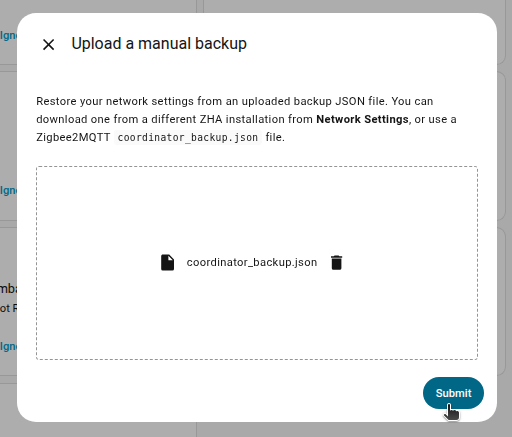
- Make sure the coordinator_backup.json file is selected and select Submit.
Step 13
Assigning coordinator to area
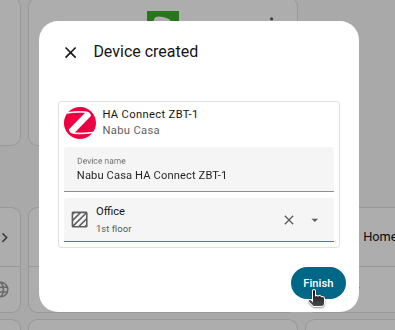
- Assign the coordinator to an area and select Finish.
- Info: You won't be able to control the devices until they rejoin the network. Normally, they join within one hour. You may be able to accelerate that process by power-cycling the devices.
Step 14
Reconfiguring automations and dashboards
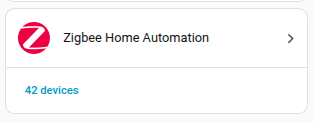
- Info: All migrated devices have new entity IDs. This means you will need to manually reconfigure automations and dashboard cards.
- Info: The names that you manually assigned to your devices won't have been migrated. You will have to rename the devices again.