Follow this guide if you have a deCONZ network running with a ConBee III, a ConBee II, or a RaspBee II and want to migrate to Home Assistant Connect ZBT-2 and the Zigbee Home Automation integration.
Note:
Not possible to migrate all settings and devices
This procedure only helps migrate basic network settings to Home Assistant Connect ZBT-2.
- Customizations like device names will be lost and automations will need to be updated.
- Most powered devices like light bulbs will be re-discovered over time (you can speed this up by power-cycling the device) but your battery-powered devices may need to be re-joined to the network for the migration to complete.
- There is currently no migration path to migrate all settings and devices.
This migration includes the following steps:
- Prerequisites.
- Migrating the deCONZ network from the old adapter to ZHA.
- Migrating this ZHA network to Home Assistant Connect ZBT-2.
Prerequisites
- A deCONZ network running with a ConBee III, a ConBee II, or a RaspBee II.
- Home Assistant version 2025.10.1 or later.
- Have the latest firmware installed on the ConBee/RaspBee adapter
- Check the steps below to see how to check the version or update the deCONZ adapter.
Updating the deCONZ adapter
Step 1
Viewing the firmware version of the adapter

- In the deCONZ app, under Settings > Gateway, check the firmware version. It should be version 26720700 or newer.
- If the version is recent enough, skip the next two steps and continue with Step 4 (Stop the deCONZ add-on).
- If the version is not up-to-date, select the Update button.
Step 2
Following the wizard
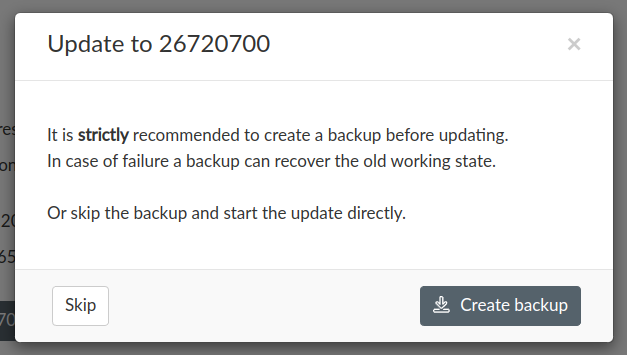
- Select Create backup and let the wizard guide you through the update process.
Step 3
Updating complete

- Once the update is complete, you will see the new firmware version.
To migrate a deCONZ network from the old adapter to ZHA
Step 1
Stopping the deCONZ add-on
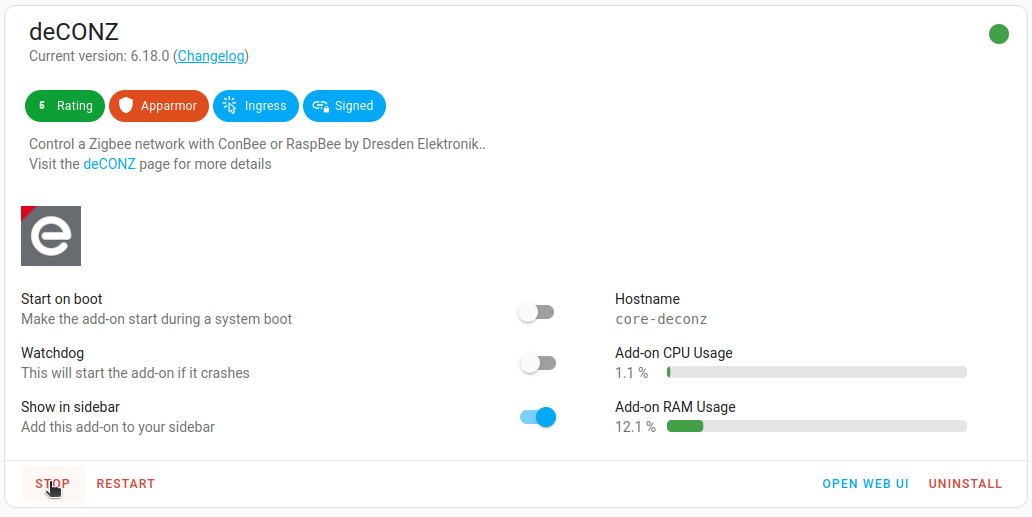
- In the deCONZ add-on, make sure the Start on boot option is disabled.
- Select Stop.
Step 2
Removing the deCONZ integration
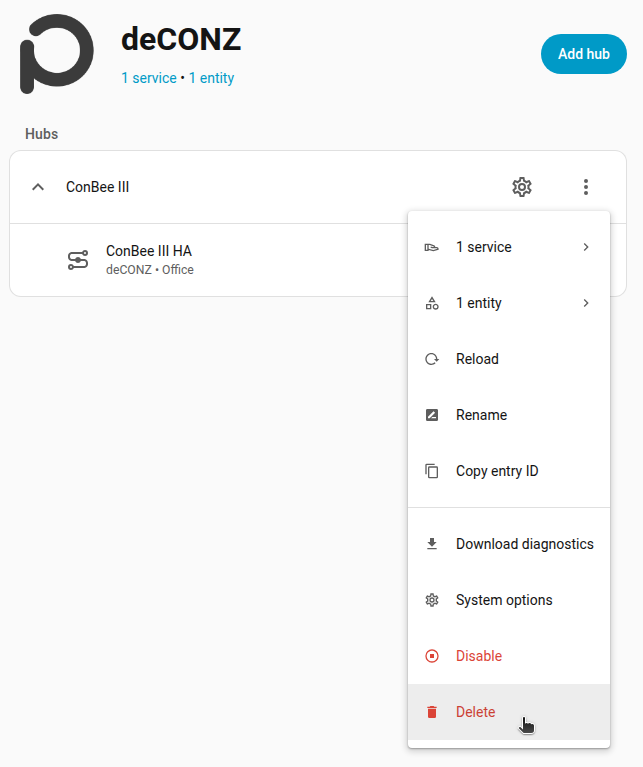
- Under Settings > Devices & services, select the deCONZ integration.
- Select the three dots menu and select Delete.
Step 3
Adding a new ZHA integration
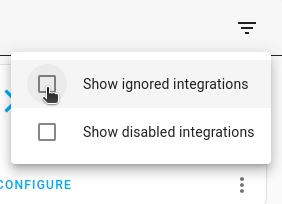
- In the top-right corner, make sure the checkboxes Show ignored integrations and Show disabled integrations are selected.
- Check if the ZHA integration shows up.
- If the ZHA integration does not show up, select Add integration, then select ZHA from the list.
Step 4
Add the Zigbee Home Automation integration

- Once the ZHA integration has detected the ConBee adapter, select Add.
Step 5
Submit
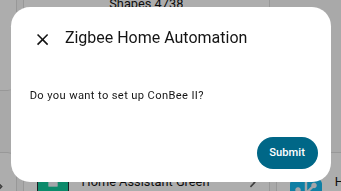
- To set up ConBee as ZHA integration, select Submit.
Step 6
Choosing the Zigbee setup
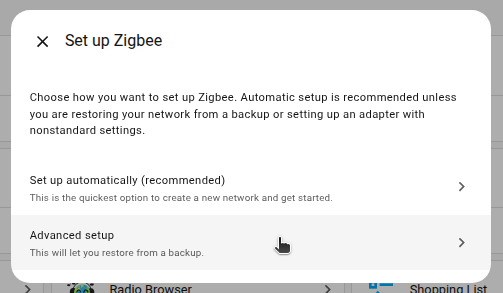
- Select Advanced setup.
Step 7
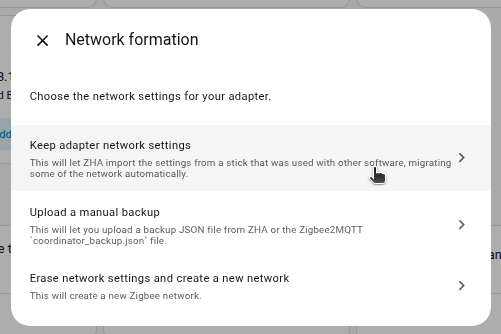
Choosing the network settings for your radio
-
Select Keep adapter network settings.
- This lets Zigbee Home Automation (ZHA) import settings from another device that was used with software other than ZHA.
- This way, some of the network settings can be migrated automatically.
-
Result:You can now start migrating the ZHA network as described below.
Step 8
Wait
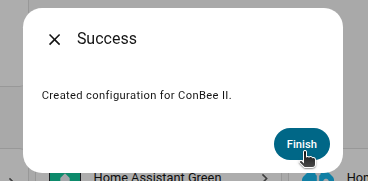
- Wait for the settings to be loaded.
- Once the ConBee/RaspBee adapter has been recognized as your Zigbee coordinator, select Finish.
Step 9
Wait
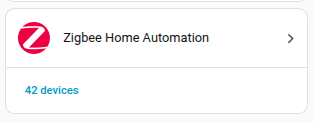
- Wait for the devices to rejoin the network
- Normally, powered devices rejoin within one hour.
- You may be able to accelerate that process by power-cycling devices.
- Your battery-powered devices may need to be re-joined to the network manually.
- Once the devices show up in the integration, select the integration.
To migrate the ZHA network to Connect ZBT-2
Step 1
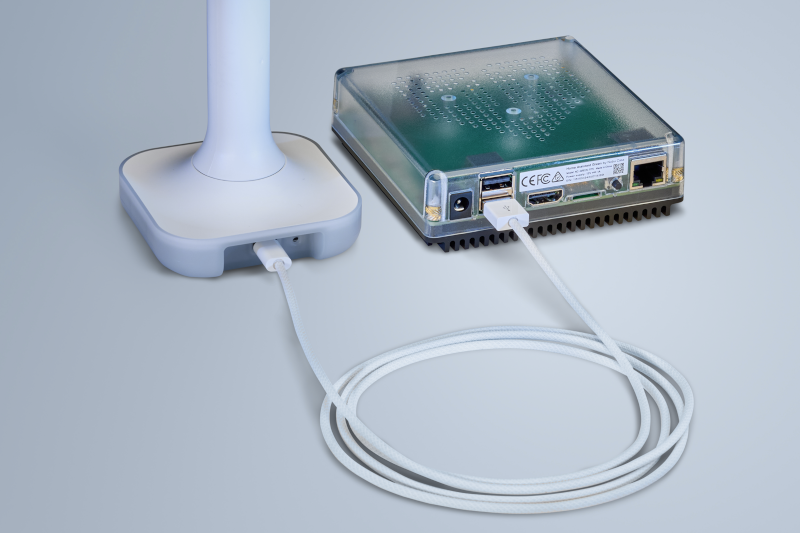
Plugging the extension cable into Home Assistant Connect ZBT-2
Notice
USB 3.0 ports and USB 3.0 drives can cause interference with 2.4 GHz protocols, including the ones provided by Home Assistant Connect ZBT-2.
- It is important to use the USB extension cable and to position the Home Assistant Connect ZBT-2 away from possible interference sources.
- This video shows the effect of interference.
- Plug the Home Assistant Connect ZBT-2 into the USB extension cable.
- Plug the extension cable into your Home Assistant instance.
- If you are using the standalone Home Assistant Container installation method, make sure Connect ZBT-2 is mapped to the container.
Step 2
Adding the Home Assistant Connect ZBT-2 integration

- Go to Settings > Devices & services.
- Home Assistant Connect ZBT-2 should now be discovered.
- Select Add.
Step 3
Picking your protocol
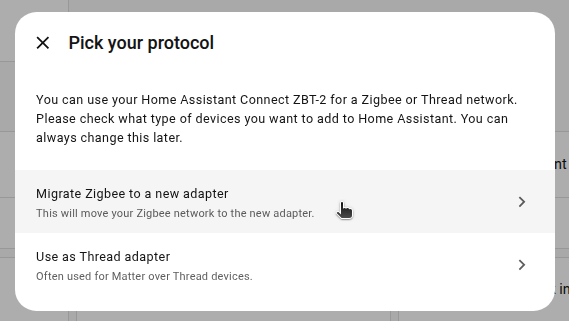
- In the dialog, select Migrate Zigbee to a new adapter.
- This will move the Zigbee network to your new adapter.
Step 4
Select installation type
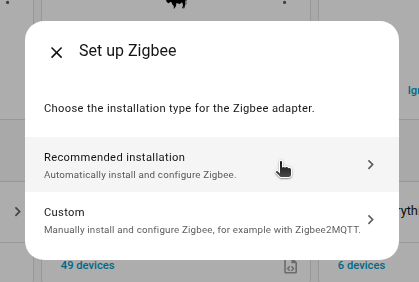
- Select Recommended installation.
- This adds the device to Home Assistant, backs up your old adapter and moves those network settings to Home Assistant Connect ZBT-2.
Step 5
Migration complete!
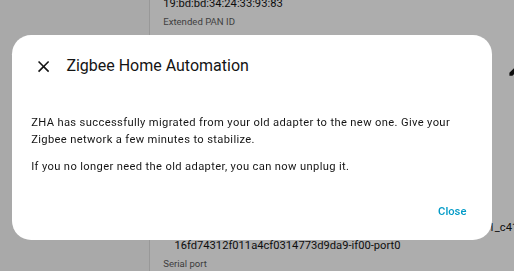
- The migration process is now complete.
- Info You won't be able to control the devices until they rejoin the network.
- Normally, they rejoin within one hour.
- You may be able to accelerate that process by power-cycling devices.
- You can now remove the old Zigbee adapter.