This guide shows you how to use the Home Assistant Connect ZBT-2 as a dedicated Thread adapter. The Thread adapter allows you to connect Thread-based devices, such as Matter-over-Thread devices, to your network.
Prerequisites
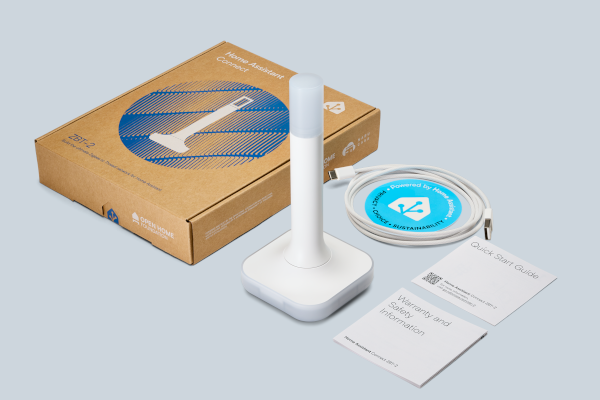
- Home Assistant Operating System installed on your smart home hub. For example:
- on a Home Assistant Green, where Home Assistant OS is preinstalled
- on a Home Assistant Yellow or on a Raspberry Pi
- Latest updates installed
- Home Assistant Connect ZBT-2 adapter and a USB extension cable
- Thread devices
To enable dedicated Thread support
Step 1
Find a good location.
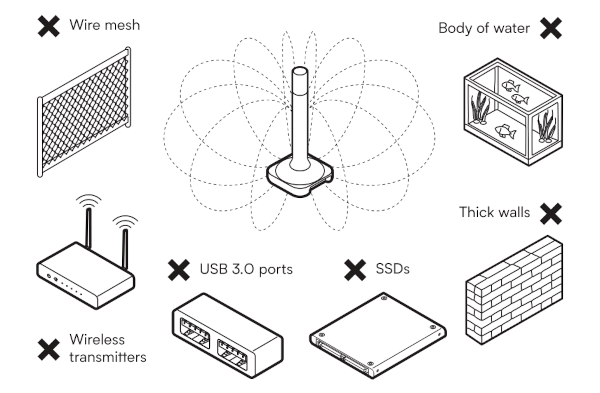
- Place the device away from objects that may cause interference or block signals, such as:
- thick walls
- wire mesh
- metal (such as server rack housings or wall mounting brackets)
- other transmitters (such as computers, routers, USB 3.0 ports, or SSDs)
- an aquarium.
Step 2
Install the device
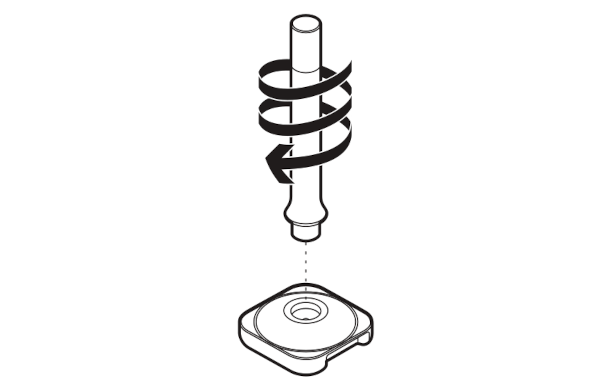
- Screw the antenna onto the base and make sure the device is placed so that the antenna is in a vertical position.
- Notice: Be careful not to overtighten. It could damage the device beyond repair.
- Don't fix the device into place permanently yet.
- After you have connected the device to Home Assistant, check if your device is in a good spot or if there is interference. If the device seems unresponsive, you might want to move it to another location.
Step 3
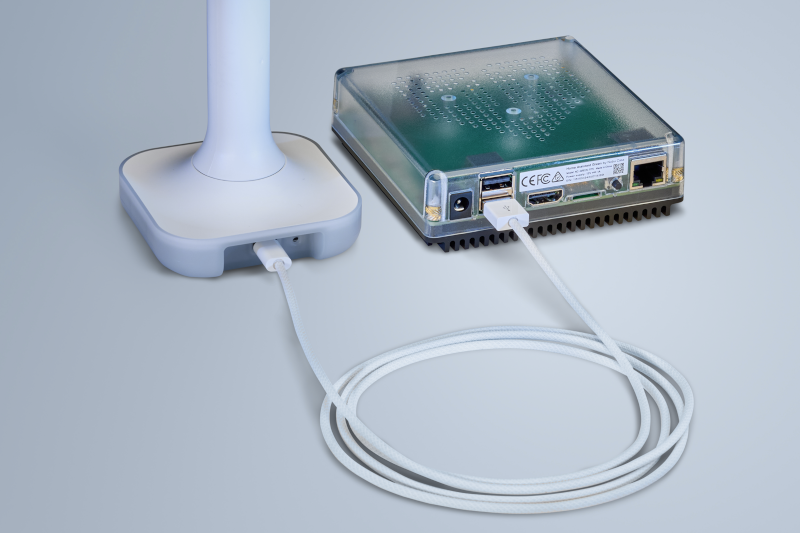
Plugging the extension cable into Home Assistant Connect ZBT-2
Notice
USB 3.0 ports and USB 3.0 drives can cause interference with 2.4 GHz protocols, including the ones provided by Home Assistant Connect ZBT-2.
- It is important to use the USB extension cable and to position the Home Assistant Connect ZBT-2 away from possible interference sources.
- This video shows the effect of interference.
- Plug the Home Assistant Connect ZBT-2 into the USB extension cable.
- Plug the extension cable into your Home Assistant instance.
- If you are using the standalone Home Assistant Container installation method, make sure Connect ZBT-2 is mapped to the container.
Step 4
Adding the Home Assistant Connect ZBT-2 integration

- Go to Settings > Devices & services.
- Home Assistant Connect ZBT-2 should now be discovered.
- Select Add.
Step 5
Selecting the Thread firmware
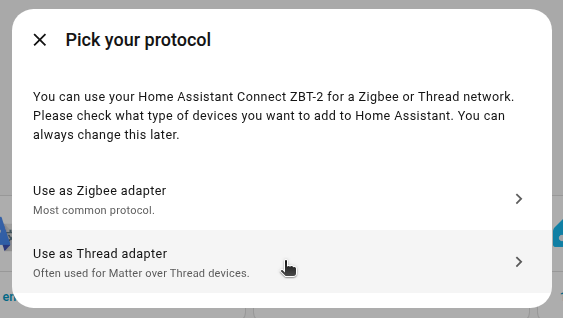
- Select Use as Thread adapter.
- Result: This installs the OpenThread Border Router add-on which allows you to connect Matter-over-Thread devices.
Step 6
Adding the adapter to an area
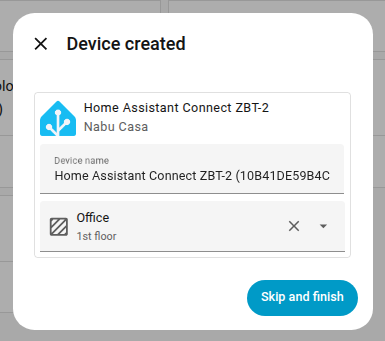
- When prompted, add the adapter to an area.
- Then, select Skip and finish.
Step 7
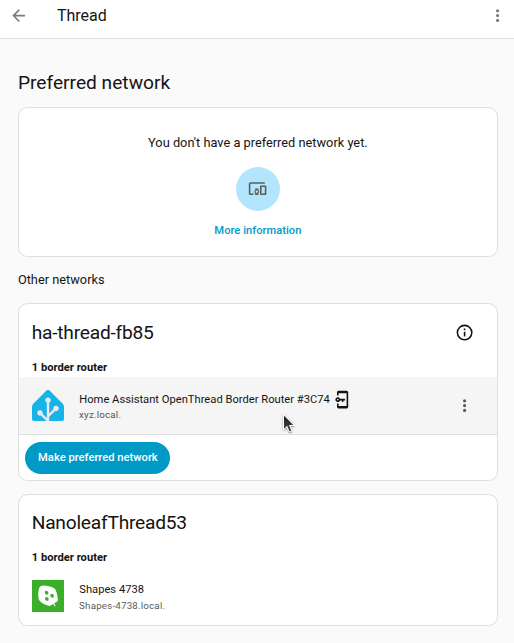
Viewing the Thread networks
-
Go to Settings > Devices & services.
- You now see the OpenThread Border Router and the Thread integrations.
-
Select the Thread integration, then select the cogwheel.
- You will now see a Home Assistant OpenThread Border Router.
- You might also see other Thread networks from other border router devices in your home.
-
Before adding Thread-based devices, you'll have to make sure your Thread credentials are set up correctly:
- Make sure that the network is the preferred network.
- Make sure you've imported the Thread network credentials to your mobile phone. Refer to the Thread documentation to learn more about different Thread networks, or about Thread border routers.
-
You can now add your Thread-based devices to Home Assistant.