If you already have a Thread adapter running but want to switch to a Home Assistant Connect ZBT-2, follow these steps:
Prerequisites
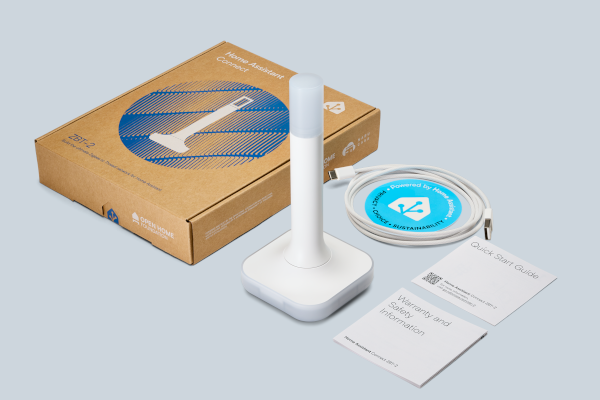
- Home Assistant Operating System installed on your smart home hub. For example:
- on a Home Assistant Green, where Home Assistant OS is preinstalled
- on a Home Assistant Yellow or on a Raspberry Pi
- Existing Thread adapter connected to your Home Assistant hub
- Latest updates installed
- Home Assistant Connect ZBT-2 adapter and a USB extension cable
- Thread devices
To migrate an existing Thread network to Connect ZBT-2
Step 1
Find a good location.
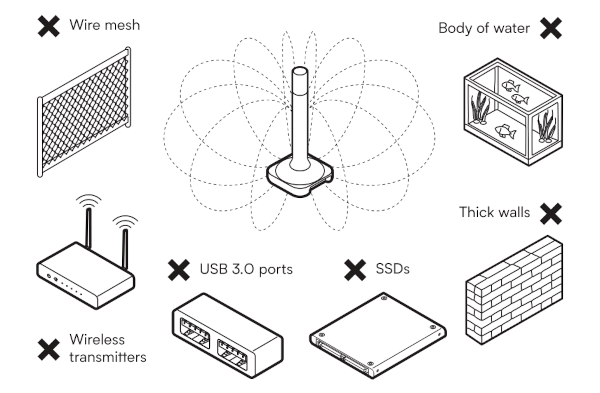
- Place the device away from objects that may cause interference or block signals, such as:
- thick walls
- wire mesh
- metal (such as server rack housings or wall mounting brackets)
- other transmitters (such as computers, routers, USB 3.0 ports, or SSDs)
- an aquarium.
Step 2
Install the device
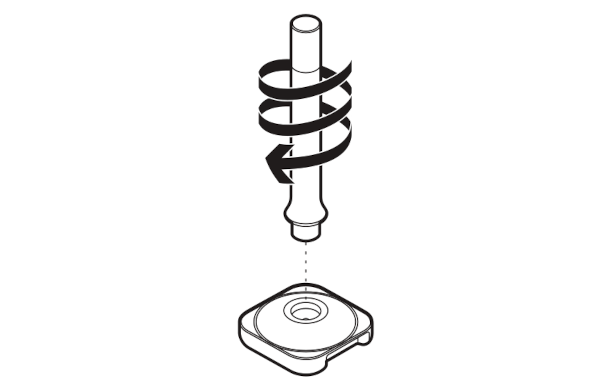
- Screw the antenna onto the base and make sure the device is placed so that the antenna is in a vertical position.
- Notice: Be careful not to overtighten. It could damage the device beyond repair.
- Don't fix the device into place permanently yet.
- After you have connected the device to Home Assistant, check if your device is in a good spot or if there is interference. If the device seems unresponsive, you might want to move it to another location.
Step 3
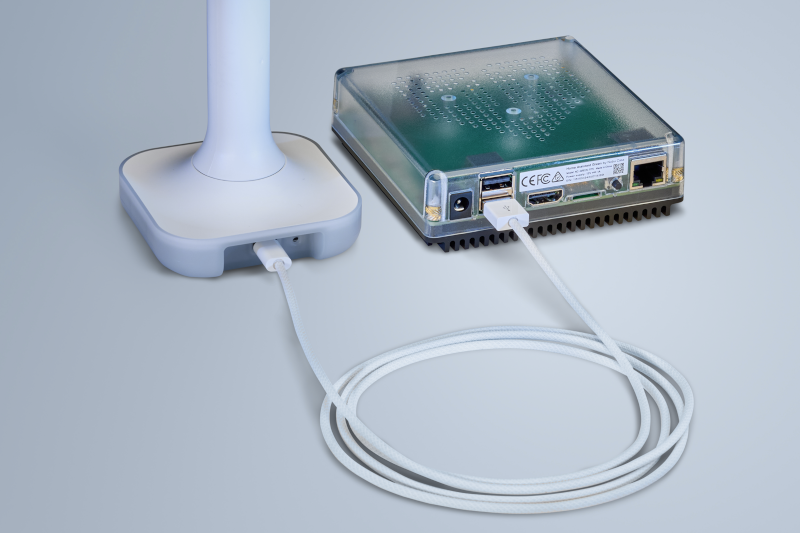
Plugging the extension cable into Home Assistant Connect ZBT-2
Notice
USB 3.0 ports and USB 3.0 drives can cause interference with 2.4 GHz protocols, including the ones provided by Home Assistant Connect ZBT-2.
- It is important to use the USB extension cable and to position the Home Assistant Connect ZBT-2 away from possible interference sources.
- This video shows the effect of interference.
- Plug the Home Assistant Connect ZBT-2 into the USB extension cable.
- Plug the extension cable into your Home Assistant instance.
- If you are using the standalone Home Assistant Container installation method, make sure Connect ZBT-2 is mapped to the container.
Step 4
Adding the Home Assistant Connect ZBT-2 integration

- Go to Settings > Devices & services.
- Home Assistant Connect ZBT-2 should now be discovered.
- Select Add.
Step 5
Migrating to a new adapter
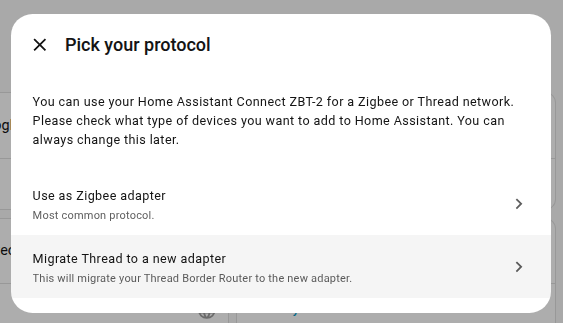
- Select Migrate Thread to a new adapter.
- Info: Your Thread network is managed by Home Assistant. It is not stored on the adapter. Migrating the adapter means that Home Assistant will start to use the radio from Home Assistant Connect ZBT-2 instead of the old one.
- Result: After the migration wizard finished, your new Home Assistant Connect ZBT-2 is used as the Thread adapter
Step 6
Removing the old integration
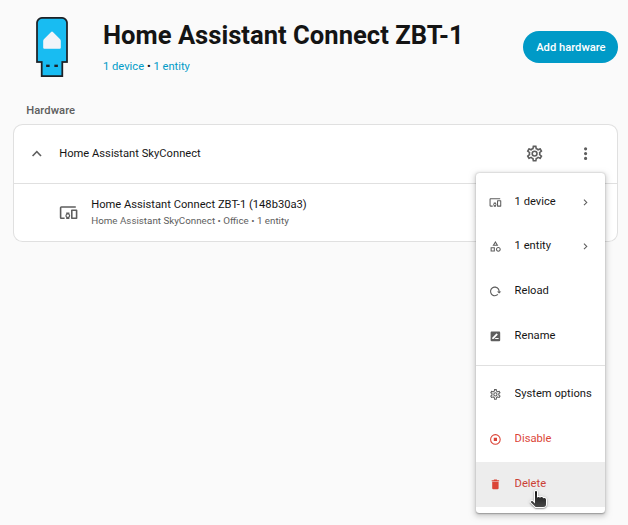
If you no longer want to use the old adapter, you can remove the old hardware integration.
- Go to Settings > Devices & services and select the integration.
- Select the three dots menu and select Delete.
- You can now unplug the old adapter.